Give everyone a voice in OldSchool RuneScape! For all characters and players, with over 1000 different voices.
To see a list of features, check out FEATURES.md
Natural Speech requires an installing external tool to process text to generate speech.
At the moment there are only 2 supported TTS engines:
- Local TTS: Piper.
- API TTS: Elevenlabs

Installing Piper on Windows.
-
Download the binary from https://github.com/rhasspy/piper/releases/download/2023.11.14-2/piper_windows_amd64.zip
-
Extract the folder somewhere on your system, for example in
C:\piper, so that it is accessible fromC:\piper\piper.exe -
Piper should now be ready to go.
Installing Piper on Mac.
- Download the binary
- Download the appropriate package and extract it for example in
~/piper/ - Piper should be ready to go
Installing Piper on Linux.
- Find the appropriate version suited for your system from https://github.com/rhasspy/piper/releases/tag/2023.11.14-2
- Download the appropriate package and extract it for example in
~/piper/ - Piper should now be ready to go.
After Installing Piper you should be able to use TTS in-game once the voice pack is downloaded, and the engine has been started.
To set up Natural Speech, you will need to install a TTS engine, and download atleast one voice pack through the plugin's panel.
After intalling the plugin, open the panel by clicking the button on the side:
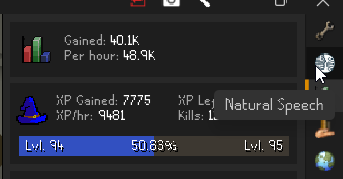
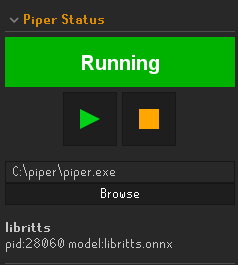
You should see a plugin panel looking like the screenshot below.
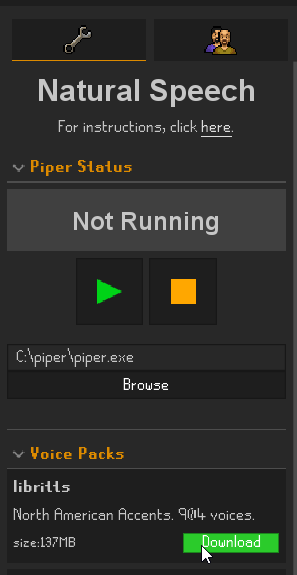
Make sure that under the Play and Stop control buttons the location of your piper installation is correct.
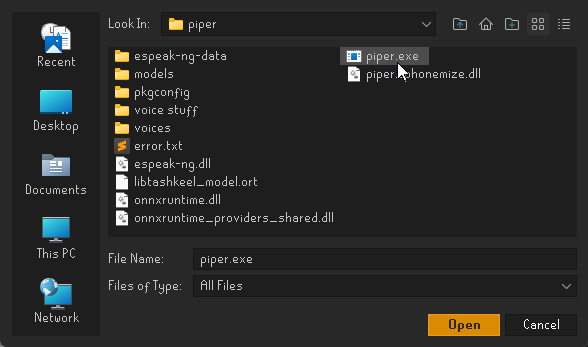
If it's not, piper will not work. To change it click on the browse button, and navigate to find piper.exe and press Open.
Click Download on a voice pack.
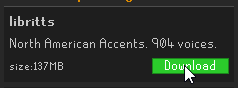
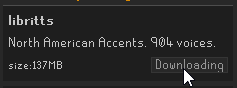
The button will get greyed out, the download will start and might take a while. Be patient.
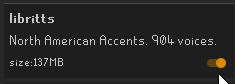
After it's finished downloading, toggle the repository on.
Piper status should update to Running, which means the plugin is ready to go!
Sign up or log in to https://elevenlabs.io and create an API key in https://elevenlabs.io/app/developers/api-keys with access to Text to speech.
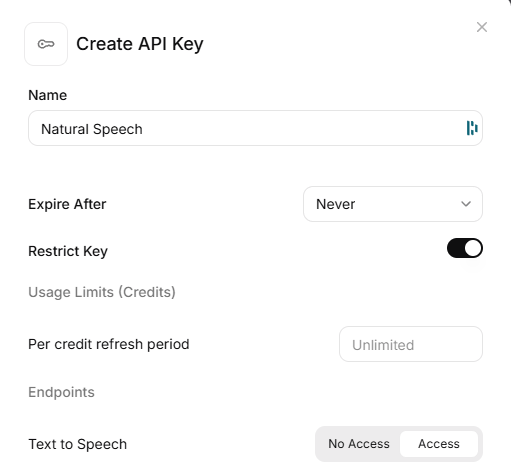
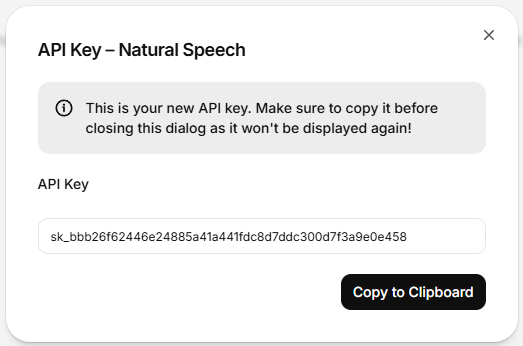
Copy the key that appears on the screen that starts with sk_
Note: the API key in this screenshot is not valid. Go make your own.
Paste the API key in Natural Speech settings
You will get a warning when pasting the key, letting you know that using this feature will send some data to ElevenLabs. This is required for it to work.
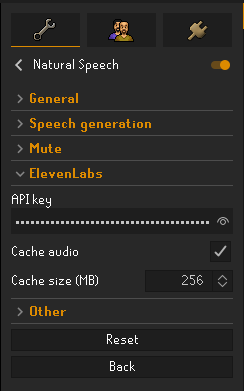
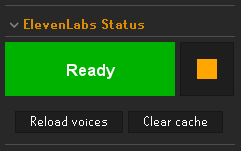
At this point, the Natural Speech panel should show that ElevenLabs is ready to use!